










Creating an email campaign requires no hard and fast rules unless the editor is too complicated, but if you query how to create HTML email campaigns, it holds more thoughts. Creating an HTML email campaign requires knowledge of Developer coding, but don’t get afraid! There are many email HTML codes you can find online, but you need to know some tweaking.
Here’s the tricky part! Email in HTML lets you tweak anything and everything in your email that you can’t do in traditional drag-and-drop email editors. MailBluster lets you create HTML emails within a minute!
Let’s find out how to make an HTML email in MailBluster step-by-step.
table of contents
- What is an HTML email?
- Key features of HTML email
- Common uses of HTML email
- Plain text email vs. HTML email
- How to create HTML emails on MailBluster
- FAQs
- Conclusion
What is an HTML email?
HTML emails refer to HyperText Markup Language, which displays content with colors, fonts, images, and the overall GUI of the email.
HTML email includes dynamic elements such as videos, graphics, and other forms of media or multimedia.
Although creating HTML format email is time-consuming, with some practice, you can work it out within a short time.
Let’s see what users say on how to make an HTML email –
There are loads of templates you can find online for free, which you can then customise. HTML isn’t particularly difficult to edit, and with some practice, you’ll work it out.
Reddit
Key features of HTML emails
- Visual styling – You can use colors, fonts, different text sizes, and backgrounds
- Images and graphics – Photos, logos, and other visual elements can be embedded
- Layout control – Create multi-column layouts, tables, and structured designs
- Links and buttons – Add clickable, styled buttons and hyperlinks
- Branding – Match your company’s visual identity with custom designs
Common uses
Newsletters, marketing campaigns, promotional emails, and professional communications often use HTML because they’re more visually engaging than plain text.
Plain text emails vs. HTML emails
HTML in email is a visual presentation, whereas plain text email is a written piece. You can clearly illustrate this, but in terms of visual appeal and precise formation, HTML is far ahead. Also, keep in mind that plain text email is not behind the race. See how plain text email is described here –
Plain text emails have more conversions because they look like they are written by hand.
Reddit
Let’s see plain text emails vs. HTML emails in the following.
Plain Text Emails
Plain text emails contain only unformatted text – no colors, images, or styling. What you type is exactly what the recipient sees. So, plain-text email is just a written piece with no graphics or other enhancements.
Advantages
- Universally compatible across all email clients and devices
- Smaller file size, loads faster
- Less likely to be marked as spam
- Better for accessibility (screen readers handle them easily)
- More personal and direct feel
- Can’t be tracked as easily (no hidden tracking pixels)
Disadvantages
- No visual appeal or branding
- Can’t include images, logos, or graphics
- Limited formatting options
- Harder to organize information visually
- Less engaging for marketing purposes
HTML Emails
HTML emails use code to create formatted, visually designed messages with styling, images, and layout. HTML email format consists of an HTML version of the email code, allowing you to easily manipulate your design or format your own.
Advantages
- Professional, branded appearance
- Can include images, logos, and graphics
- Better for organizing complex information
- More engaging and eye-catching
- Supports buttons, colors, and various fonts
- Better for marketing and newsletters
Disadvantages
- May display differently across email clients
- Larger file size
- More likely to trigger spam filters
- Can contain tracking pixels
- Takes more time and skill to create
- Some recipients disable HTML and will see broken formatting
Finally – Which to use?
Plain text works well for personal correspondence, internal communications, or when you want a more genuine, direct tone. HTML is better for marketing, newsletters, announcements, or any time you need visual impact and branding.
How to create HTML emails in MailBluster
Creating an email in HTML takes no less than some coding knowledge, but you can use simple HTML codes to create an HTML email. Here we are using DOCTYPE HTML to implement and send HTML emails. Copy and paste the basic HTML DOCTYPE structure and edit as necessary.
Have a look at the step-by-step process.
Step 1: Add HTML email code
Create your own DOCTYPE HTML code or add the following code to the HTML Editor in MailBluster.
<!DOCTYPE html>
<html>
<head>
    <meta charset="UTF-8">
    <title>Page Title</title>
</head>
<body>
    <!-- Visible content goes here -->
</body>
</html>
First,
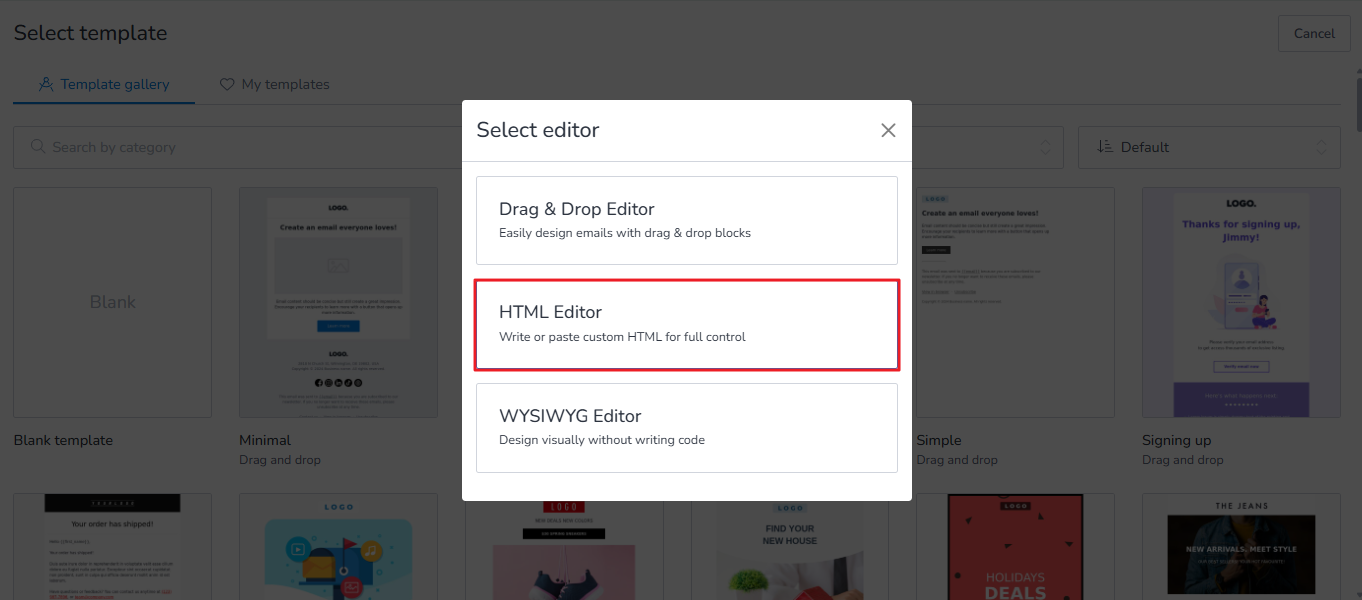
- Sign in to your MailBluster account, go to Campaigns, and +Create new.
- Move to the Content section and select Editor.
- Click on Blank template and select HTML editor.
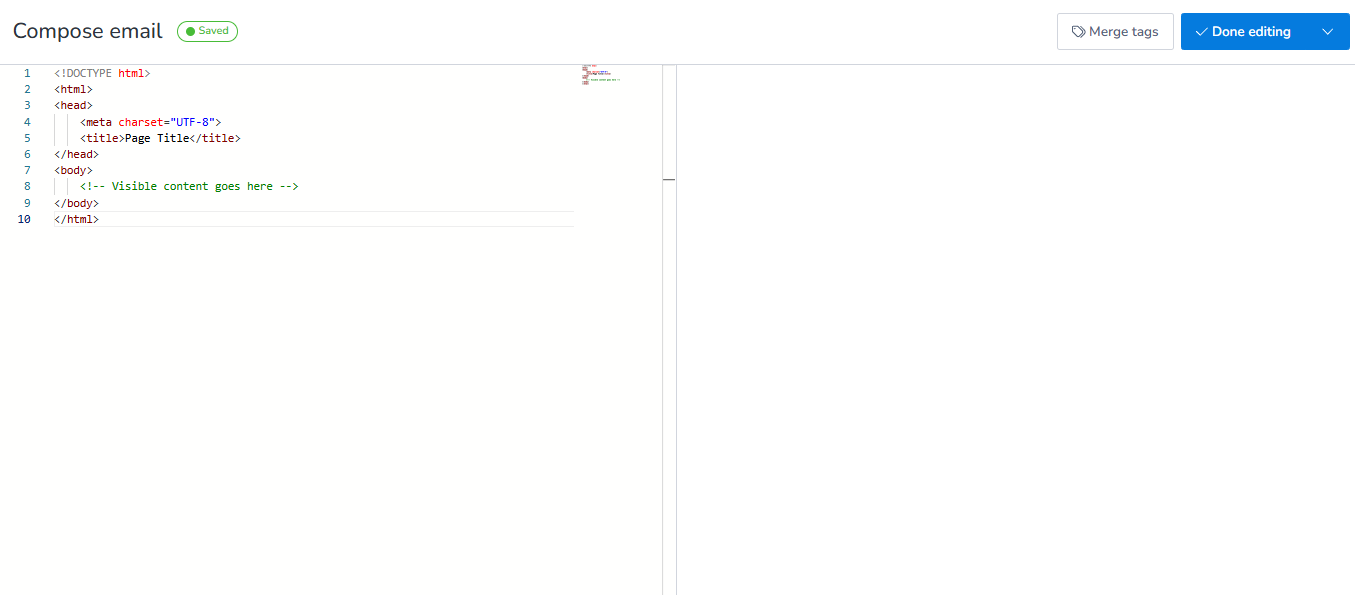
- Paste or edit your HTML email code and see the preview on the right
Step 2: Add content to the HTML email body
You can define the header, container, and content here with suitable codes, such as <div class=’’container”> to align your content within a suitable device or make it responsive.
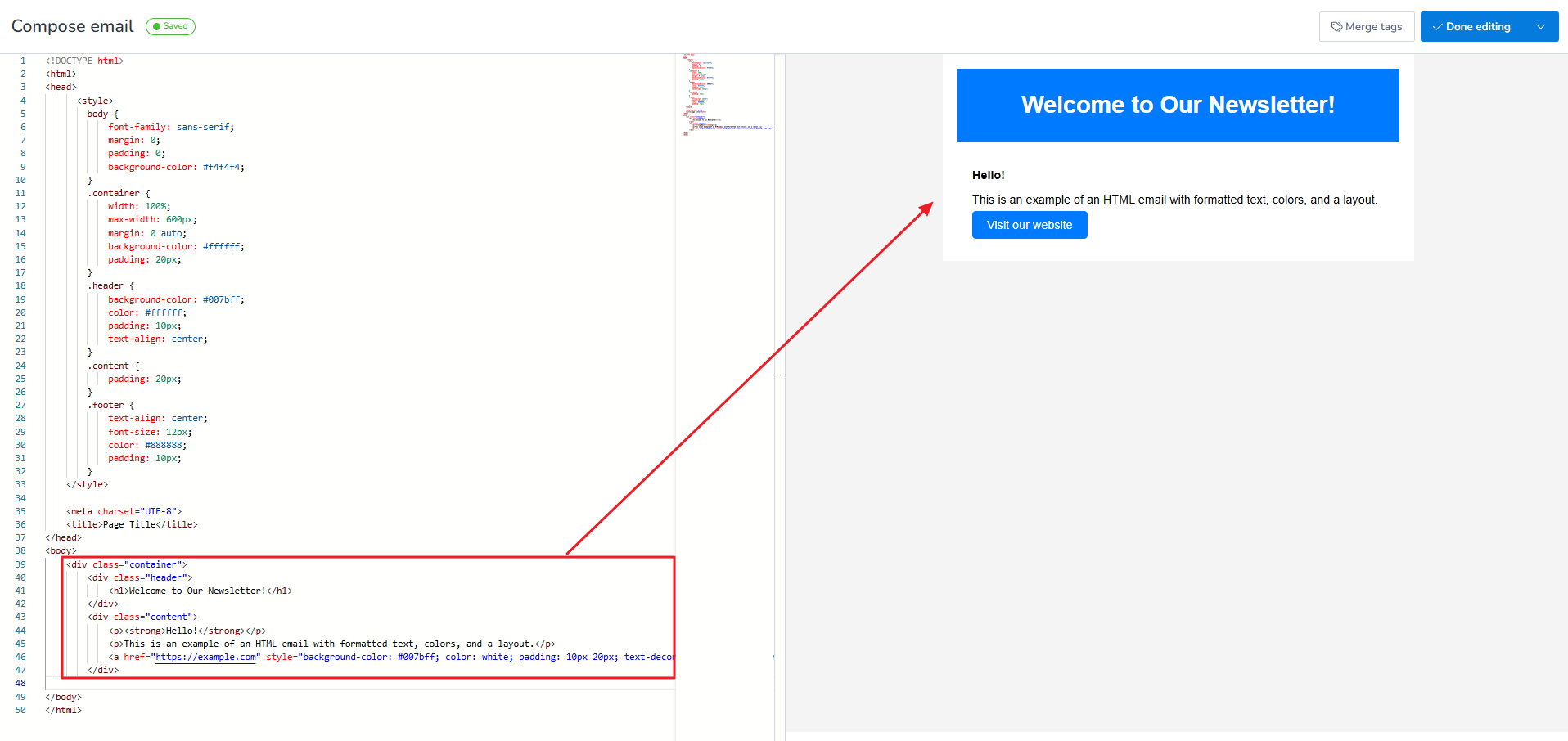
Add the tag just after the <body> section, and you can also add the <div class=’’header”> section here to add the header.
<!DOCTYPE html>
<html>
<head>
    <meta charset="UTF-8">
    <title>Page Title</title>
</head>
<body>
       <div class=’’container”>
<div class="header">
            <h1>Welcome to Our Newsletter!</h1>
</div>
<div class="content">
            <p><strong>Hello!</strong></p>
            <p>This is an example of an HTML email with formatted text, colors, and a layout.</p>
            <a href="https://example.com" style="background-color: #007bff; color: white; padding: 10px 20px; text-decoration: none; border-radius: 5px;">Visit our website</a>
        </div>
</body>
</html>
Step 3: Design your email
You can personalize the coding with your own style and color within the <style> …</style> tags. Define font size, color, text alignment, and more!
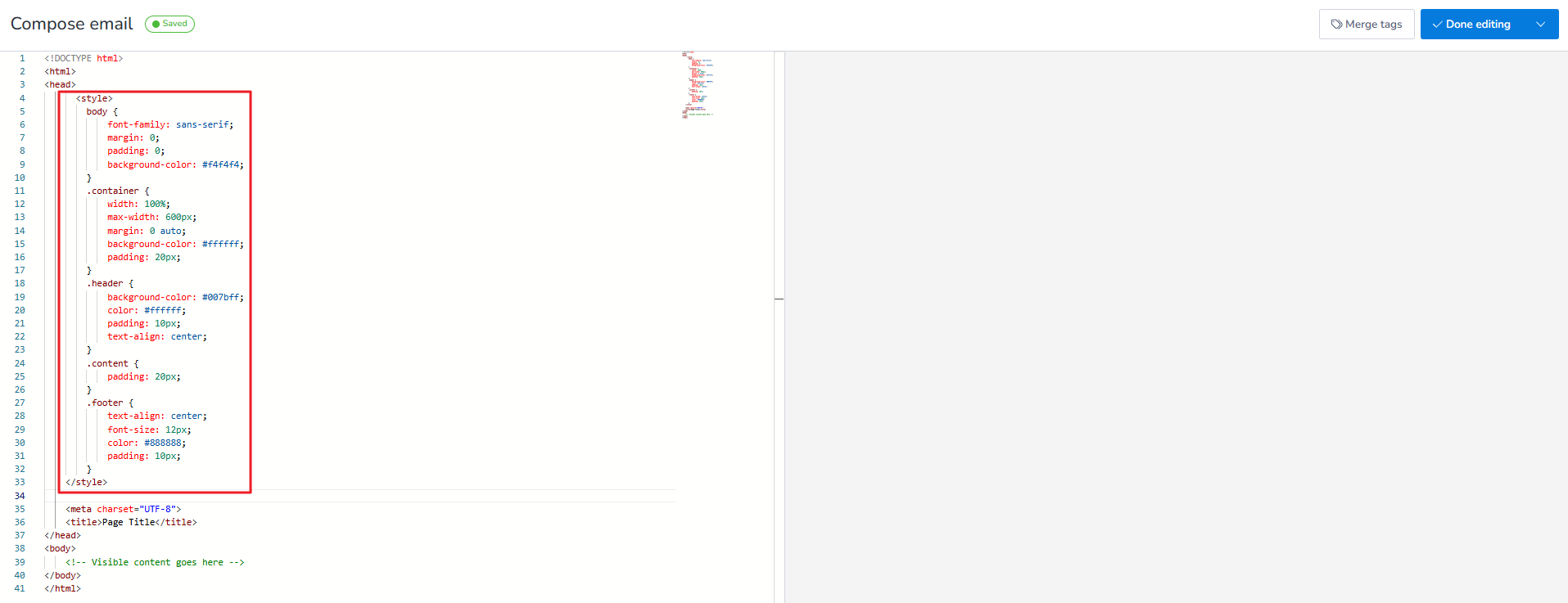
For example –
<!DOCTYPE html>
<html>
<head>
         <style>
           body {
            font-family: sans-serif;
            margin: 0;
            padding: 0;
            background-color: #f4f4f4;
        }
        .container {
            width: 100%;
            max-width: 600px;
            margin: 0 auto;
            background-color: #ffffff;
            padding: 20px;
        }
        .header {
            background-color: #007bff;
            color: #ffffff;
            padding: 10px;
            text-align: center;
        }
        .content {
            padding: 20px;
        }
        .footer {
            text-align: center;
            font-size: 12px;
            color: #888888;
            padding: 10px;
        }
         </style>
    <meta charset="UTF-8">
    <title>Page Title</title>
</head>
<body>
       <div class=’’container”>
<div class="header">
            <h1>Welcome to Our Newsletter!</h1>
</div>
<div class="content">
            <p><strong>Hello!</strong></p>
            <p>This is an example of an HTML email with formatted text, colors, and a layout.</p>
            <a href="https://example.com" style="background-color: #007bff; color: white; padding: 10px 20px; text-decoration: none; border-radius: 5px;">Visit our website</a>
        </div>
</body>
</html>
Step 4: Add a footer to the HTML email format
Add a footer section to the email’s HTML to enhance its authenticity for the audience. HTML code of the footer section includes –
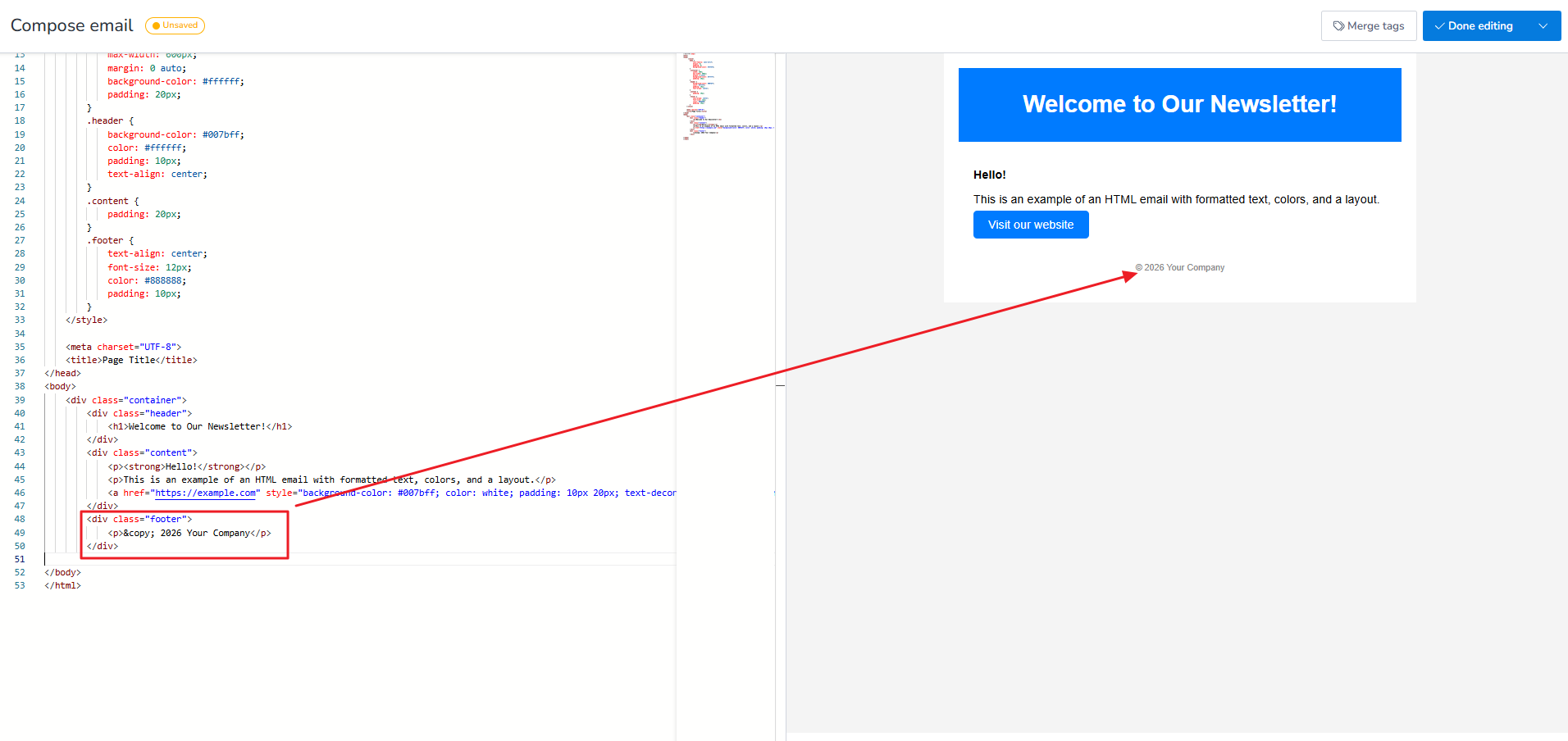
<div class="footer">
<p>© 2026 Your Company</p>
</div>
The footer section goes before the </body> section, so here’s the full HTML email code.
<!DOCTYPE html>
<html>
<head>
<style>
body {
font-family: sans-serif;
margin: 0;
padding: 0;
background-color: #f4f4f4;
}
.container {
width: 100%;
max-width: 600px;
margin: 0 auto;
background-color: #ffffff;
padding: 20px;
}
.header {
background-color: #007bff;
color: #ffffff;
padding: 10px;
text-align: center;
}
.content {
padding: 20px;
}
.footer {
text-align: center;
font-size: 12px;
color: #888888;
padding: 10px;
}
</style>
<meta charset="UTF-8">
<title>Page Title</title>
</head>
<body>
<div class=’’container”>
<div class="header">
<h1>Welcome to Our Newsletter!</h1>
</div>
<div class="content">
<p><strong>Hello!</strong></p>
<p>This is an example of an HTML email with formatted text, colors, and a layout.</p>
<a href="https://example.com" style="background-color: #007bff; color: white; padding: 10px 20px; text-decoration: none; border-radius: 5px;">Visit our website</a>
<div class="footer">
<p>© 2026 Your Company</p>
</div>
</body>
</html>
This is a very basic HTML email code example for creating and sending HTML emails on MailBluster. Here, we have added a simple style, body section, header, content, and footer. You can add more interactive content, like videos or animated images, in HTML email format.
Conclusion
While HTML emails look better, they’re more complex to create, can have compatibility issues across different email clients, and some recipients prefer plain text for simplicity or accessibility. Most bulk email services today support both – you can choose to send in HTML format or plain text, and many email clients will display a plain text version if the recipient’s settings prefer it. So, the choice is yours.
FAQs
Creating HTML emails primarily requires CSS styling, formatting, adding interactive content, and responsiveness for devices.
In Gmail, go to three dot menus opening the email on the right → Show original → Go to the bottom of the page, here you can see the email in HTML format → copy the HTML code starting from <!DOCTYPE HTML.
You can see the HTML code in Gmail, but you can’t add HTML email code directly. You can edit and inspect the text within the browser to create and add an HTML email. In the compose window of Gmail → right click and select Inspect → edit HTML and paste your code within <div>….</div> code to make and send an HTML email in Gmail.
You can create an HTML email in Outlook → create your HTML code within the file → open the compose window from Outlook → click on Attach file → upload the HTML file containing the code. You can see the HTML-formatted email now.
 Contents