Meta pixel
What is AWS?
What is Amazon SES?
Why use MailBluster with AWS for sending emails?
What is an AWS Region?
Check reputation metrics of your AWS account
MailBluster is still giving a message to move out of sandbox
Can you send test email in AWS Sandbox with MailBluster?
What is Amazon SNS?
Why do you need Amazon SNS?
Connect AWS account with MailBluster
AWS account payment and free tier details
AWS account credit card requirement
Website requirement for AWS account
Pricing plan of Amazon SES
Amazon SNS fee
Move out of Amazon SES Sandbox
Using MailBluster when AWS account is in sandbox
Amazon SES sandbox and it’s restrictions
Amazon SES sandbox removal request rejection
Resolve error: ‘Unable to connect with Amazon SES using your AWS account’
Recipient address on Amazon SES suppression list
Manage IAM users across multiple brands in MailBluster
Verify domain in Amazon SES
Verify email address in Amazon SES
Verify sender domain from MailBluster
Verify sender email address from MailBluster
What is a sender identity?
What is a custom domain?
Set custom mail from domain in AWS
Importance of setting up custom mail from domain for DMARC alignment
Why set custom mail from domain in Amazon SES?
Configure a custom domain or subdomain for tracking
Prevent gmail from showing ‘via amazonses.com’
Reasons your AWS account gets paused and how to fix it
Resolve AWS account pause issue
Achieve positive sender reputation for new domain
Resolve error: Unable to find the permission of ‘AmazonSESFullAccess’.
Resolve error: Unable to find the permission of ‘AmazonSNSFullAccess’.
Resolve error: Invalid AWS secret access key
Disable open tracking for all campaigns sent from your brand
Resolve error: “We couldn’t find required configuration to track your email activities using your AWS credential”
Fix DMARC alignment and SPF issues in Amazon SES using a custom mail from domain
Gmail is not showing one-click unsubscribe (list-unsubscribe header)
Does AWS show complaint rates and bounce rates for AWS accounts?
How to find details of a recipient complaint in Amazon SES
What is a campaign?
Types of campaigns
Edit campaign in MailBluster
Duplicate campaigns in MailBluster
Schedule campaign in MailBluster
Save content campaign as a template
Edit scheduled campaign in MailBluster
Cancel scheduled campaign in MailBluster
Archive / unarchive campaigns
Export campaign HTML
Change the width of campaign email
Maximum email content size limit
Using query string in campaign
Remove MailBluster branding
Why MailBluster campaign sending takes time
What is double opt-in?
Send quick test email before campaigns
Send test email using merge tags
Create A/B testing campaign
Configure Double Opt-in in MailBluster
Difference between standard campaigns and automation campaigns
Send campaign in plain text in MailBluster
Create and send an email campaign
Send personalized email from MailBluster
Compose email using drag and drop editor
Share email campaign from MailBluster
Add unsubscribe link using Drag and Drop editor
Add unsubscribe link using HTML editor
Add unsubscribe link using WYSIWYG editor
Email campaign is showing “outdated”
Campaign still in the “waiting” status
Resolve Error: “Link/URL used in campaign content must be a maximum of 1000 characters long”
Warm up a new subdomain for large email audiences
Store images in MailBluster
Display a sender image in email campaign
Maximum file size of an image file
Add strikethrough in the subject line of email campaign
Add motion logo in email campaign
Text looks broken in campaign despite appearing fine in the editor
Use UTM for tracking in MailBluster using google analytics
Exceeding the email sending limit in MailBluster and its impact on campaigns
Resolve “Content is invalid, merge tag or block tag contains error”
Resolve “AWS connection is invalid” under the Sender email address
Short preheader text in email campaigns automatically populates
CTA button url is showing 404 error and redirecting in test email
Use Default Merge Tag in Email When Data is Missing

Create A/B testing campaign

Last update: November 5, 2026

You can easily create and send an A/B testing email campaign in MailBluster by following a few simple steps. First, go to your Brand > Campaigns and the click on Create new.
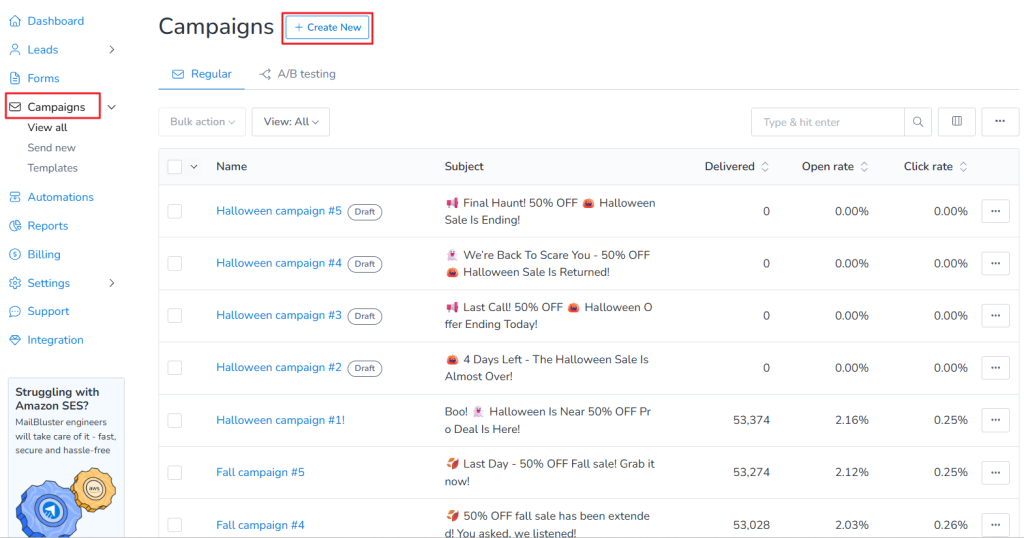
Select Campaign and click on create new

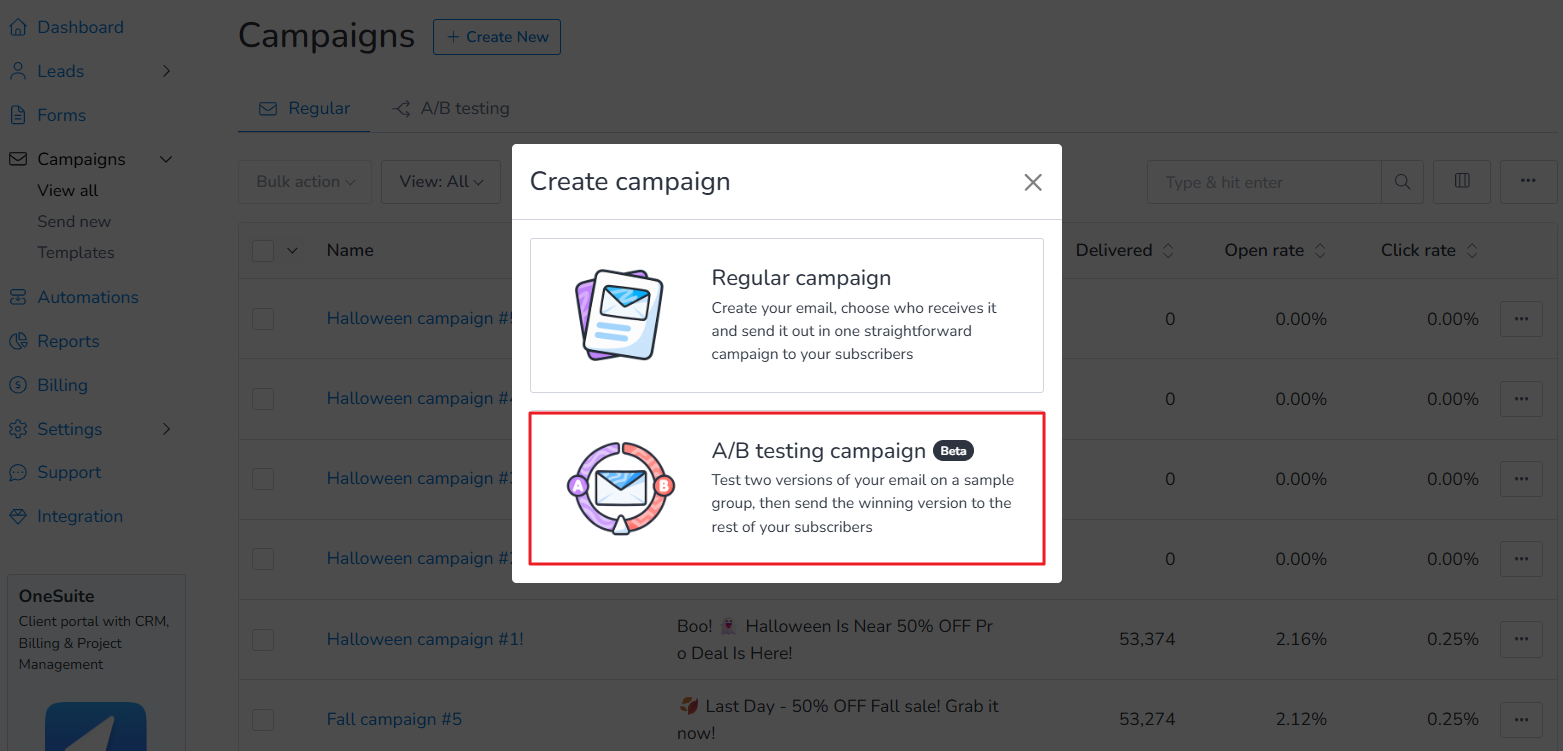
Now select A/B testing campaign.

Select A/B testing campaign

A new A/B testing campaign window will appear. Enter the Campaign name and select the appropriate Audience. You can send the campaign to All subscribers or Subscribers of a segment.
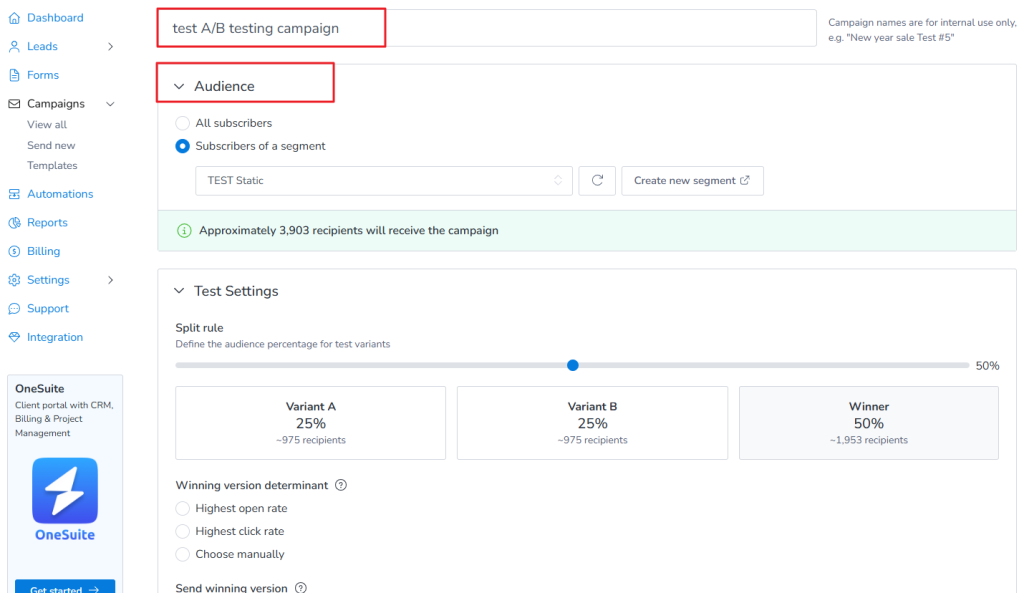
Select the audience of campaign

Next, configure the Test Settings. Use the Split rule to select the percentage of recipients who will receive Variant A, Variant B, and the winning version.

Then choose how the winning version will be determined:

  • Highest open rate
  • Highest click rate
  • Choose manually

You can also choose to send the winning version Automatically or Manually and set the Test duration.
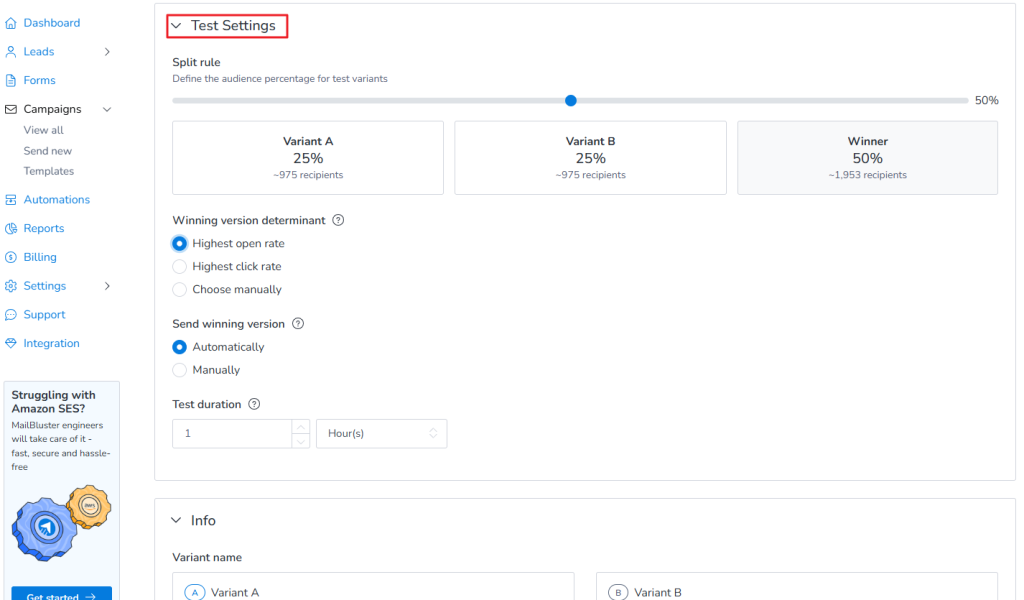
Set up the test settings

In the Info section, enter the details for Variant A and Variant B, such as the variant name, subject, preheader text, sender name, sender email address, and reply-to email address.

If you want to use the same information as Variant A for any field in Variant B, enable Same as Variant A
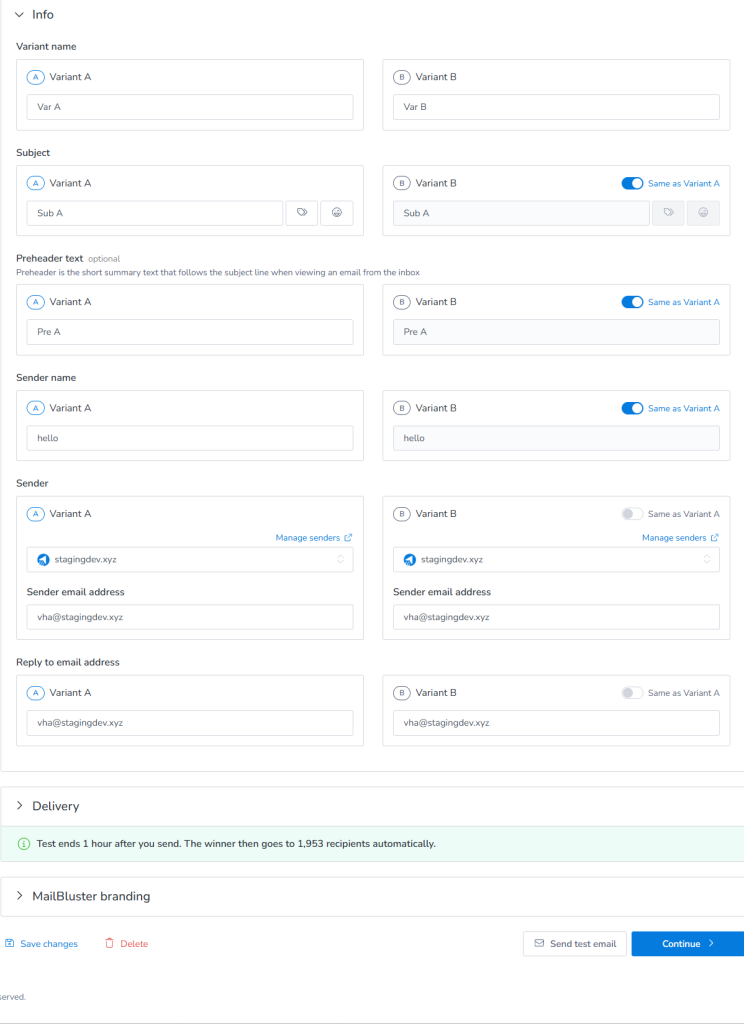
Give info of the campaign

Next, select the Delivery option for both variants. You can choose Send now or Schedule and select the appropriate timezone.

Choose the MailBluster branding option according to your plan. You can also click Send test email to check your email before sending.
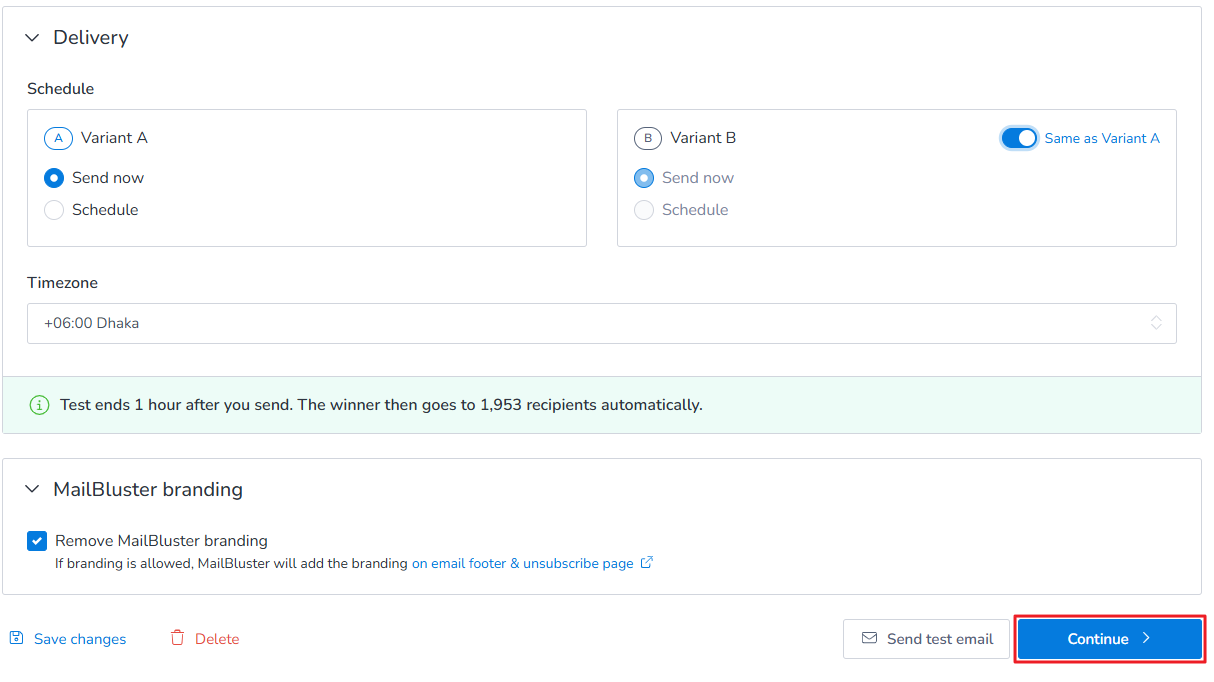
Once everything is ready, click Continue. Review the campaign details and send or schedule your A/B testing campaign.

After the test duration ends, MailBluster determines the winning version based on the option you selected. If Automatically is selected, the winning version is sent to the remaining recipients automatically.